Skip to content
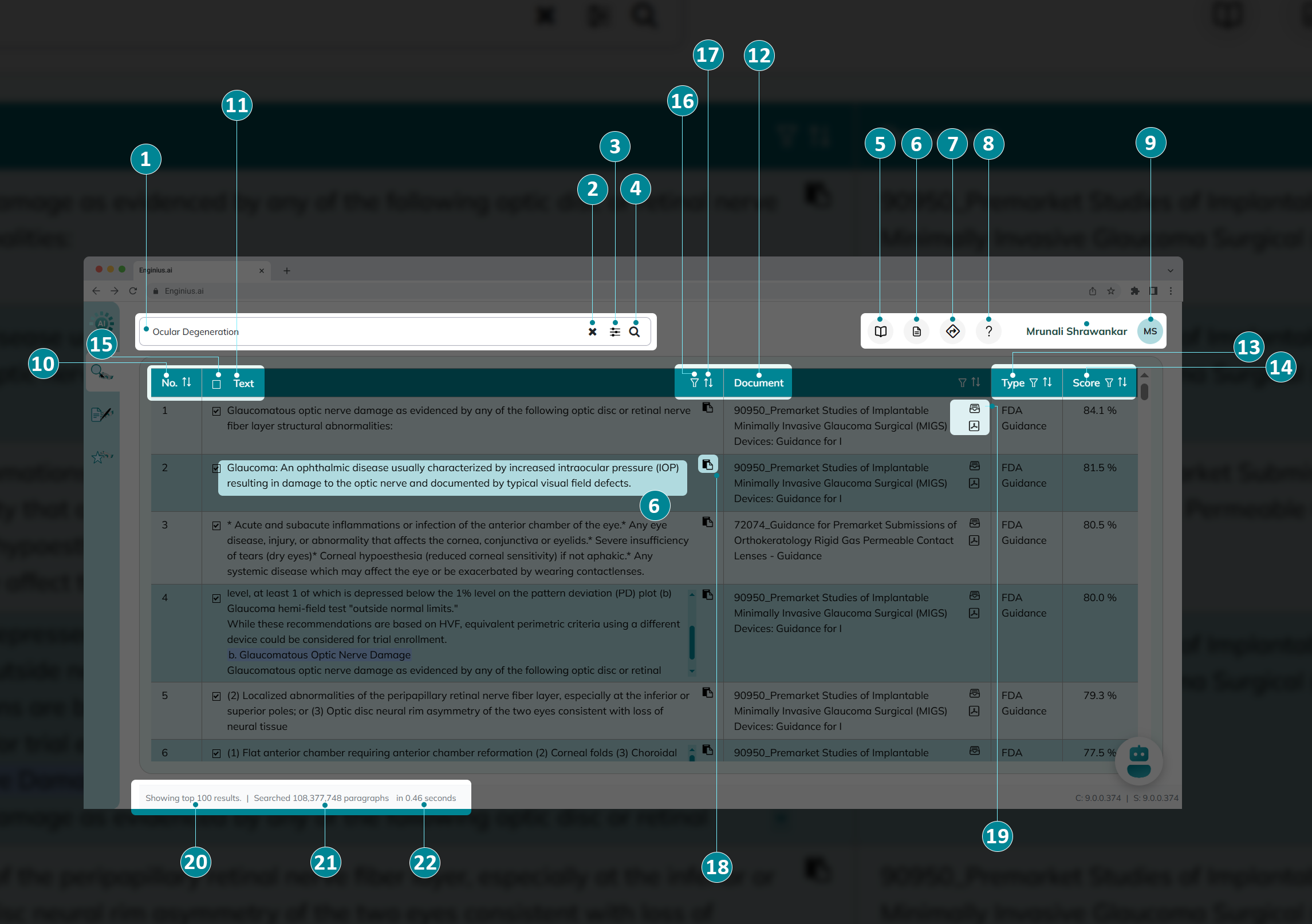
- Search Bar: Type words or phrases in the search bar to search across documents and databases.
- Clear Search : Remove the current query and resets the search results.
- Advanced Search : Open the Advanced Search panel for fine-tuned queries using additional criteria. This enables more precise searches. Click Advanced Search to learn more.
- Search Action : Click the magnifying glass or press Enter to execute the search. Click Basic Search to learn more
- Dictionary : Nova understands terms in the correct domain context by building an
AI-powered dictionary based on your organization’s documents, data, language and terminology without manual configuration. Quickly look up and identify the technical terms for both Private and Public Documents. - Document List : Displays all documents included in the knowledgebase by Document Type.
- Tour : If unsure about a feature, click the Tour button and take interactive NovaAI guided walkthrough to quickly learn key features like search, filtering, traceability, and AI insights. Here are the following tours:
- Basic Search
- Search Results
- Advanced Search
- Search Chatbot
- Document Details
- Database Details
- Help : Opens this detailed help guide.
- User Profile: Access your account information or log out.
- No.: Sequential index of search results based on the accuracy Score.
- Search Result: Shows paragraph or snippet that matches your query.
- Document Title: Displays title of source document.
- Type: Indicates document category (e.g., FDA CFR, FDA Guidance, etc.).
- Score: Displays how closely the search results match your query.
- Result Selection: You can manually select or deselect results to customize the AI Summaries in the Search Chatbot. (Default: results above 66% score are selected)
- Filter : Refines and narrows your results for more precision.
- Sort : Allows ascending or descending sorting for any column.
- Cite : Copies a permanent citation link for the selected result.
- Detailed Viewer : Displays the selected result with context in a dedicated view.
- Documents Viewer: Opens a dedicated document viewer of the original document in a new tab with the matched search result section highlighted.
- Databases Viewer: Opens a dedicated table view with advanced search and filter capabilities.
- Results Count: Shows the total number of results returned.
- Paragraph Coverage: Indicates the total number of paragraphs searched.
- Search Time: Shows how long the search took.